
How to order — step by step
Ordering takes about 2 minutes. Follow the pictures below — the orange arrows show exactly where to tap. It works the same on a phone and on a computer.
- About 2 minutes
- No account needed
- USDT payments confirm automatically
-
Step 1
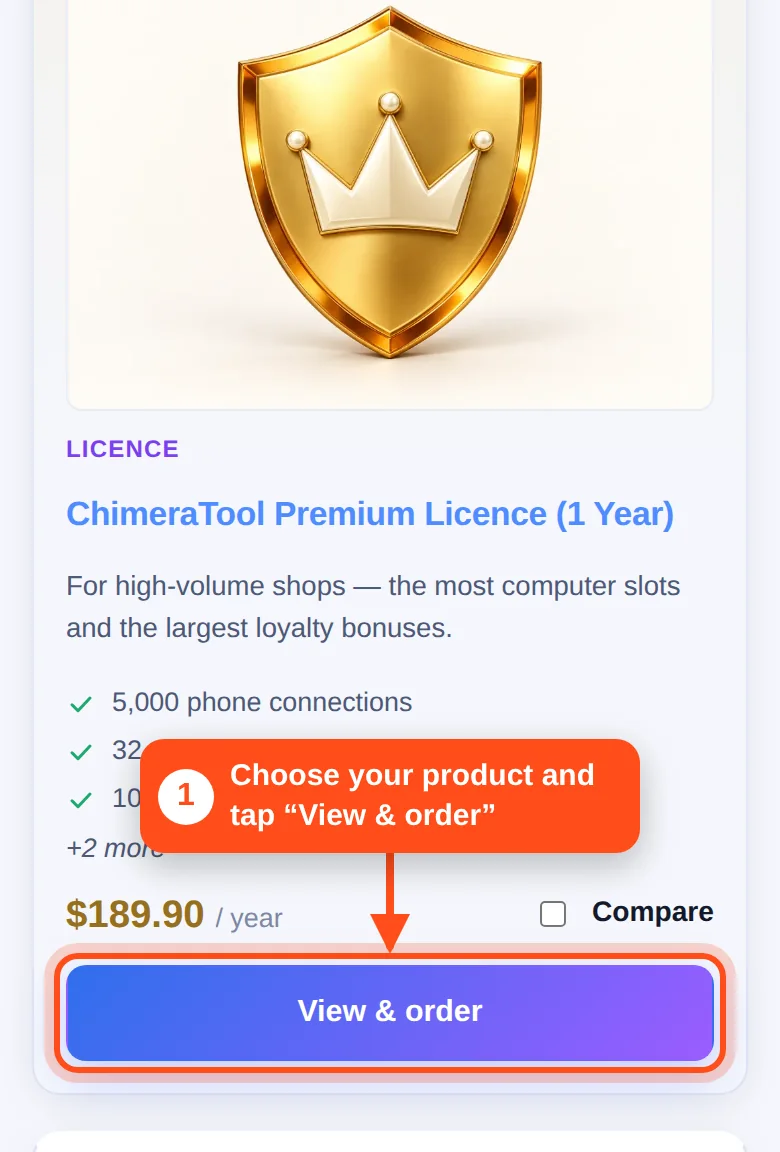
Choose your product
Open the Catalog, find the licence or credit pack you need and tap “View & order”.
-
Step 2
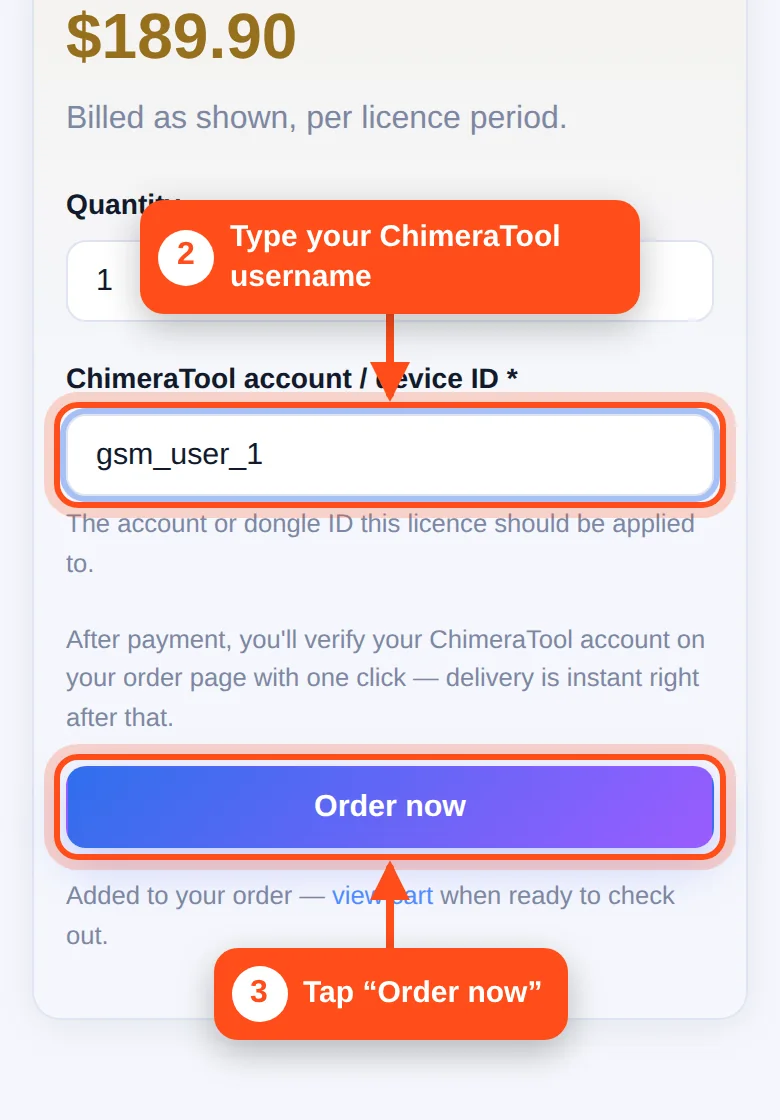
Enter your ChimeraTool username and tap “Order now”
Type the username (or dongle ID) of the ChimeraTool account that should receive the licence or credits. For credit packs, also enter how many credits you want. Then tap “Order now”.
- Double-check the spelling — this is the account we deliver to.
-
Step 3
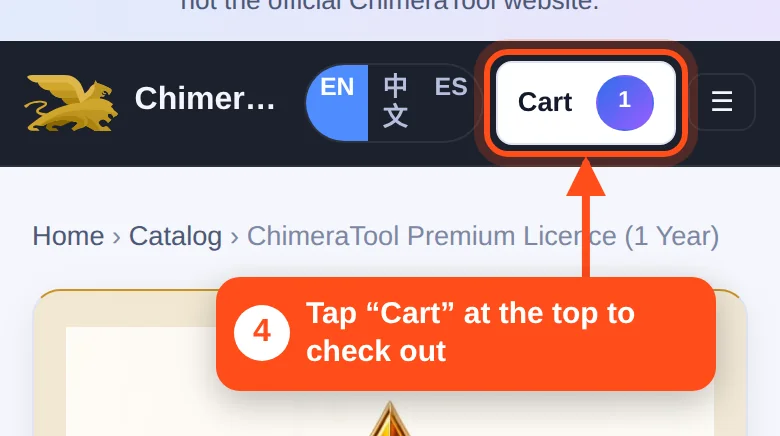
Open your cart
Tap “Cart” at the top of the page. The number next to it shows how many items are in your order.
-
Step 4
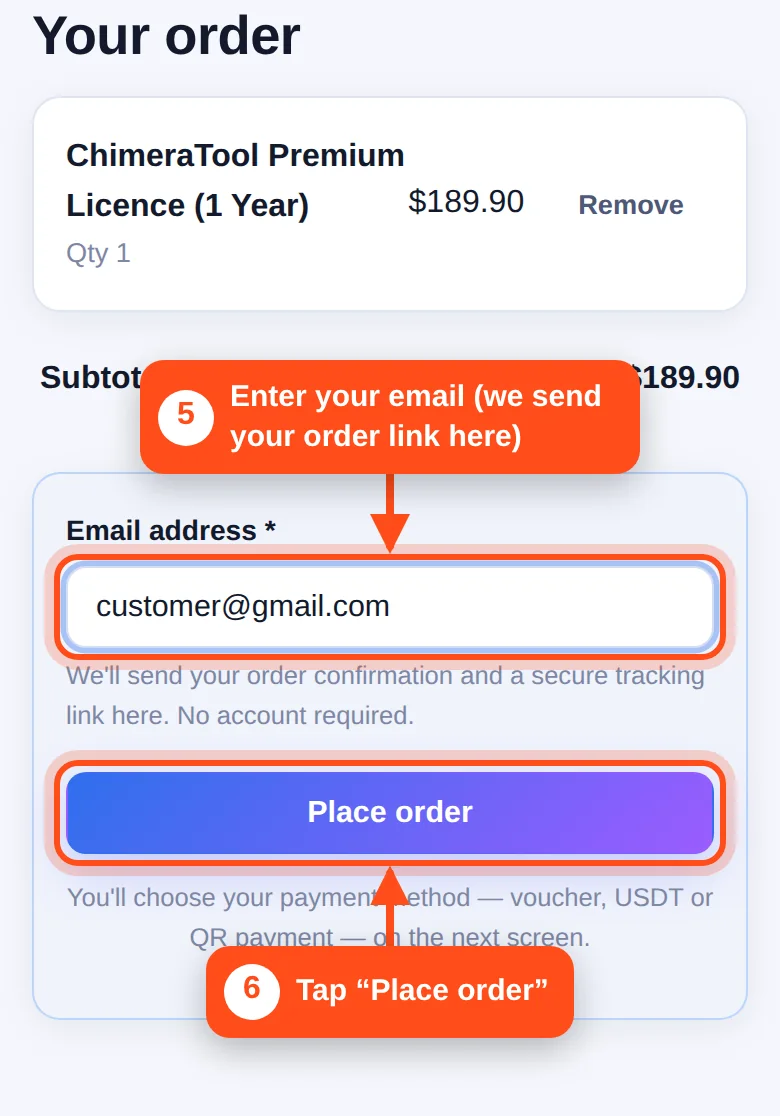
Enter your email and place the order
Type your email address and tap “Place order”. We email you an order confirmation with a private link to your order page — no account or password needed.
-
Step 5
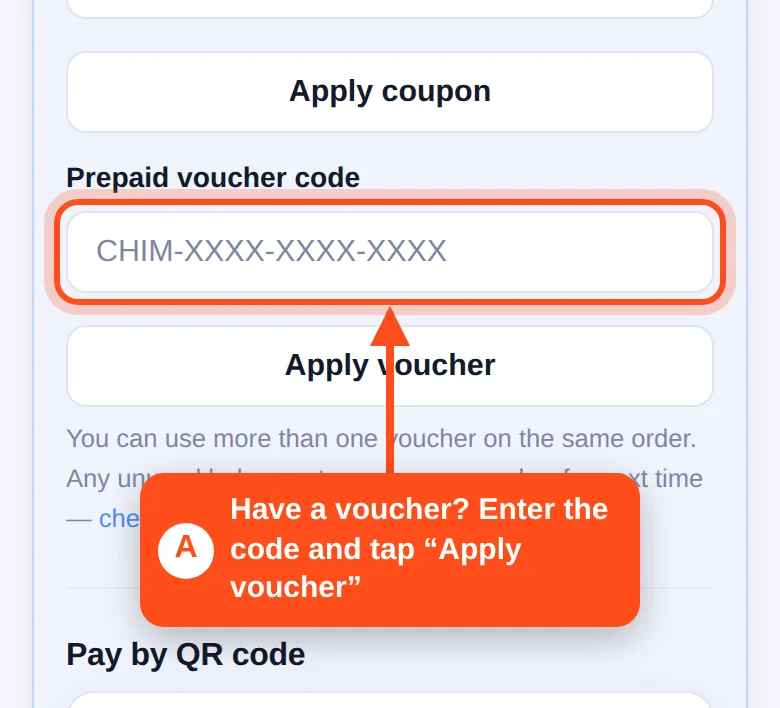
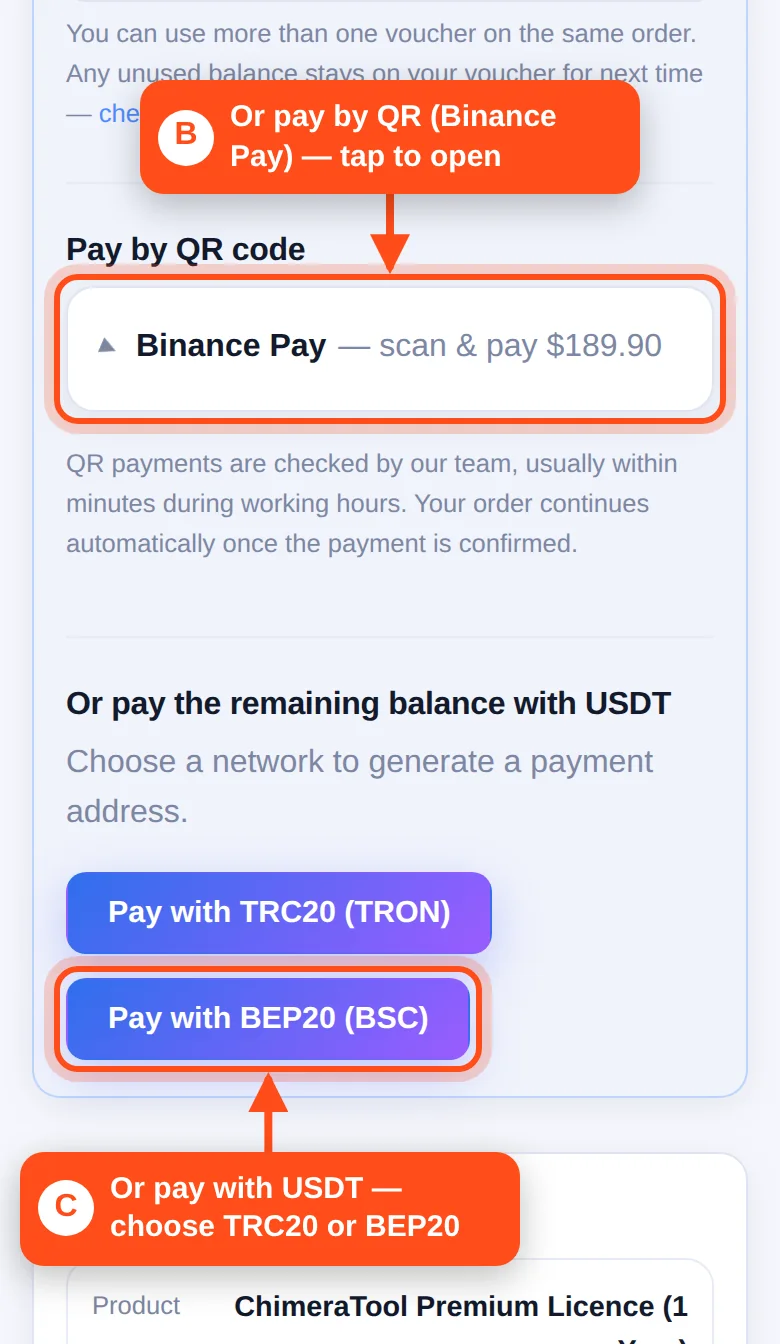
Choose how to pay
Your order page opens. Pay in one of these ways:
-
Step 6
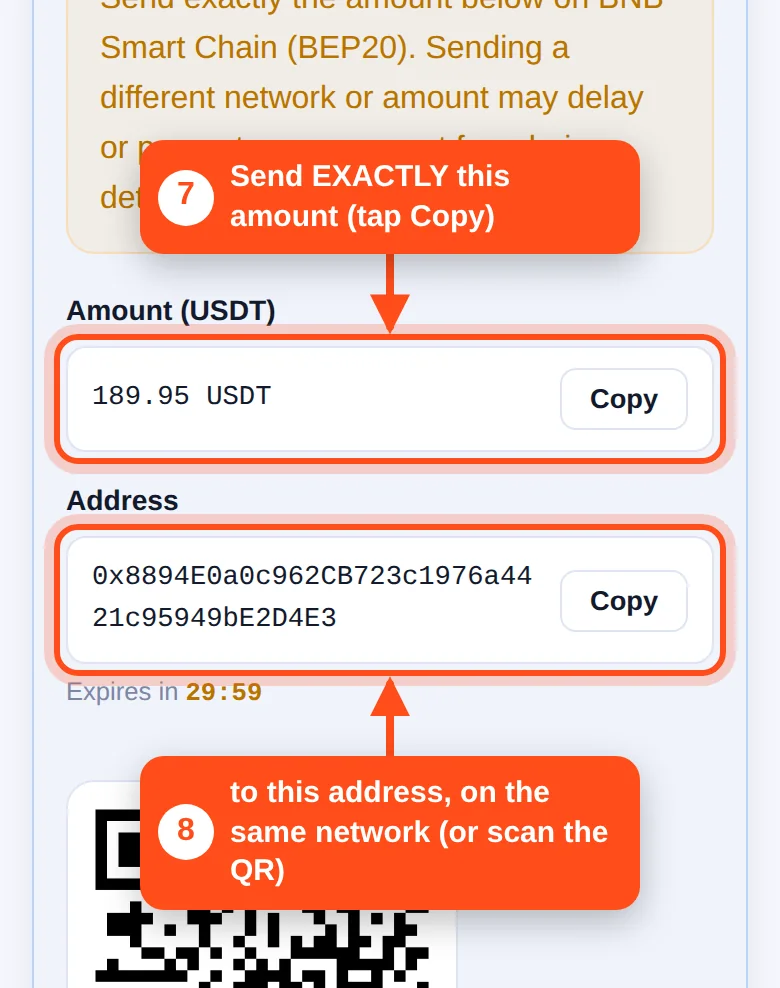
Send the USDT
Copy the amount and the address shown (or scan the QR code) and send the payment from your wallet or exchange.
- Send the EXACT amount shown — it is how we recognise your payment. If your exchange takes a withdrawal fee, make sure the amount that arrives is not less.
- Use the same network you chose: TRC20 = TRON, BEP20 = BNB Smart Chain (BSC). A payment sent on another network cannot be detected.
- Pay before the timer runs out. You can keep the page open — it updates by itself once your payment is confirmed.
-
Step 7
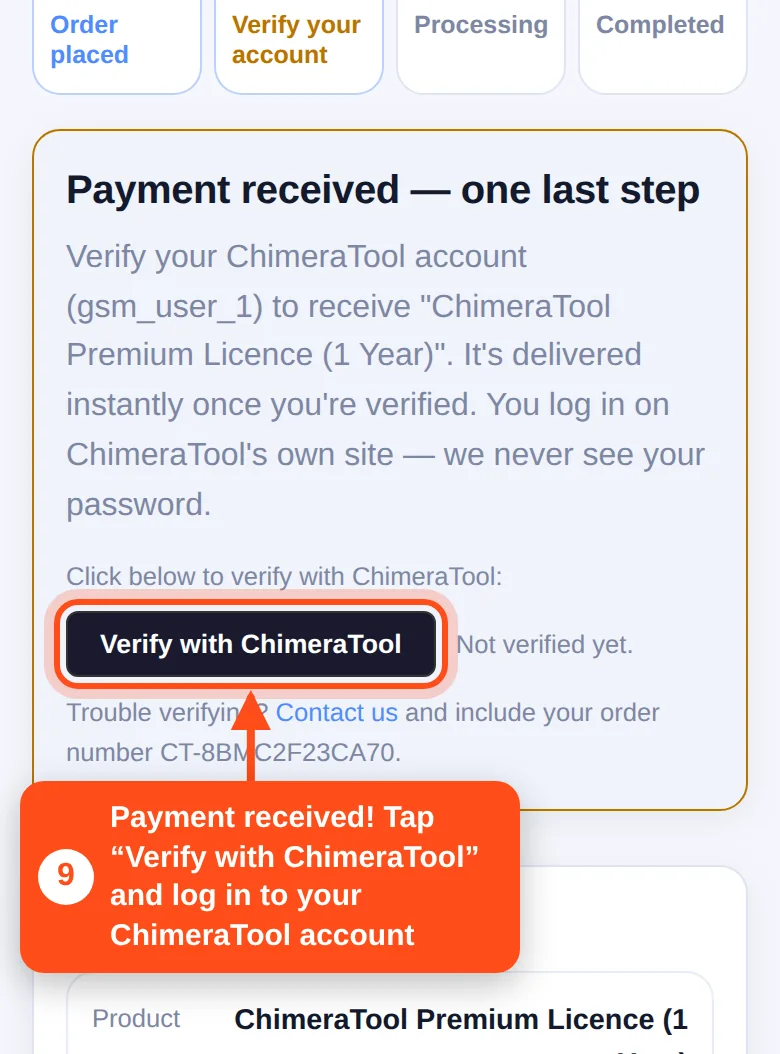
Verify your ChimeraTool account
When your payment is received, the order page shows “Payment received — one last step”. Tap “Verify with ChimeraTool” and log in to your ChimeraTool account. You log in on ChimeraTool's own website — we never see your password.
- Ordered through our Telegram bot? It sends you a button that opens this step right inside Telegram.
-
Step 8
Done!
Your order shows “Completed” and your licence or credits are on your ChimeraTool account. We also send you an email — keep it, its link brings you back to your order at any time.
- Lost the link? Use “Track an order” with your order number and email.
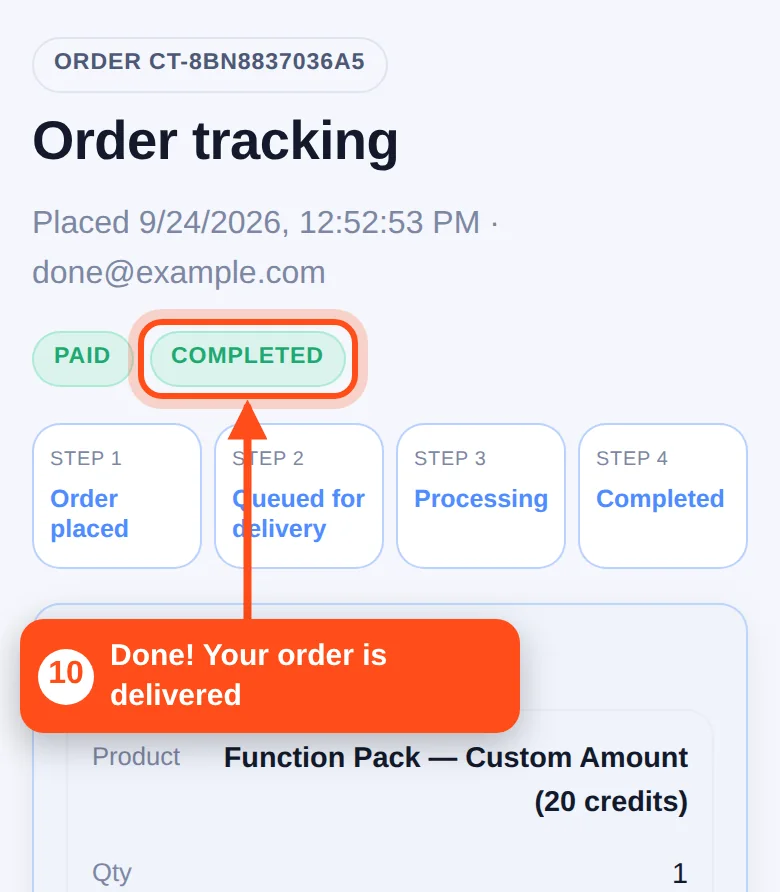
Pictures show example details. Your own order page shows your amount, address and order number.
Need help?
Stuck on a step? Email us at gamecodedigital@gmail.com with your order number, or use our contact form.